
UPDATE:
As of January 2026, Google will phase out their POP3 integration in Gmail.
This means that you will no longer be able to fetch emails into Gmail and use Gmail as an email client. You can, however, still send via IMAP from Gmail.
This means you have the following options going forward:
1. Switch to another email client
Instead of using Gmail, you can for example use Outlook or the free Thunderbird.
You can find guides for setting up both Outlook and Thunderbird in our knowledge base.
2. Continue using Gmail by forwarding all emails to your Gmail
This is not a method we recommend, but it is possible to forward all your emails to your Gmail and still reply from your email addresses here.
---------------------
You can use the emails you create on your Polar55 account directly with your Gmail.
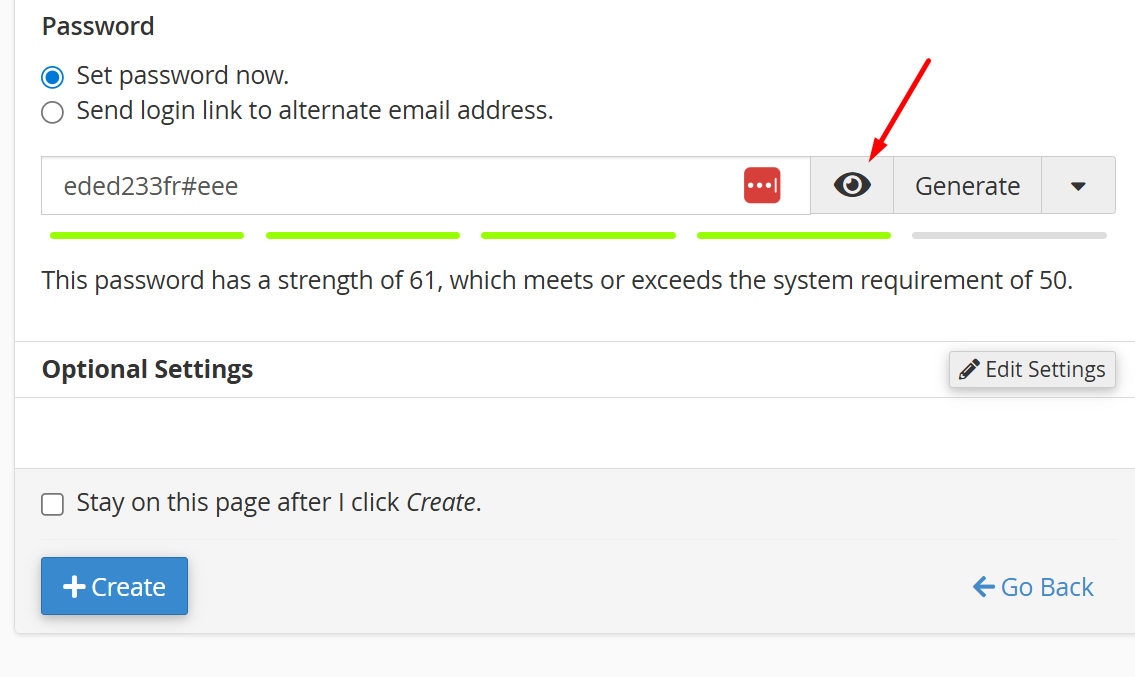
First, you need to create your new email account. It's important to copy/note down the password for your email account to ensure it's correct when setting up the account in Gmail.
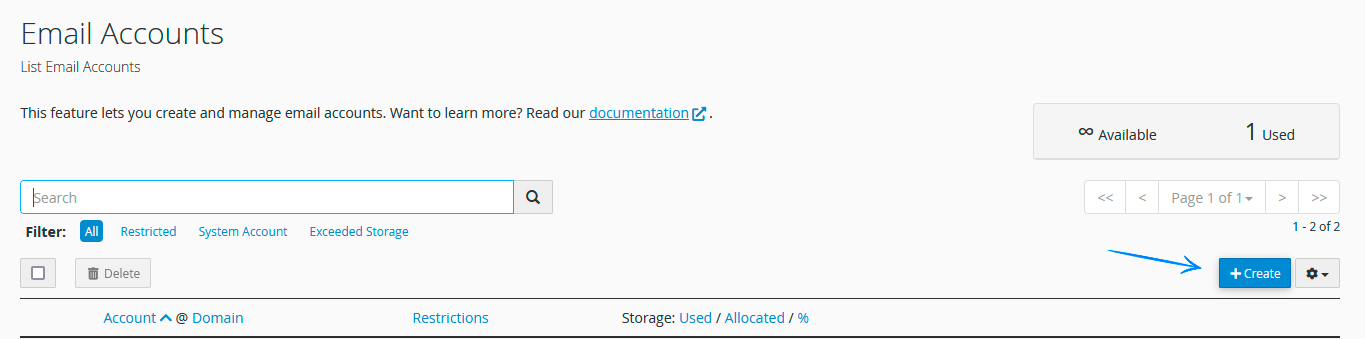
Create your email under 'Email Accounts,' select 'Create' as shown below.
Then, follow the setup guide. You can watch this video for assistance.
The easiest way is to have a password generated automatically, then copy and save it. This ensures your password is strong enough.
Now you're ready to set up your email in Gmail.
Log in to Gmail and go to Settings -> Accounts and Import.
Start by looking under 'Send mail as' and click on 'Add another email address.'
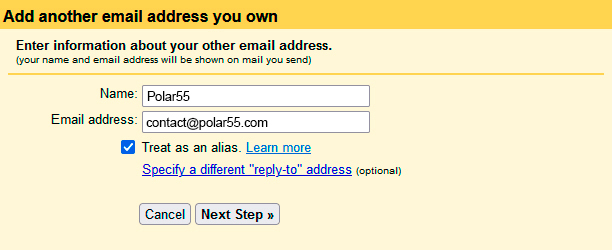
In this example, we're trying to add the email 'contact@polar55.com.'
Start by filling in the account owner's name and the email address, as shown below.
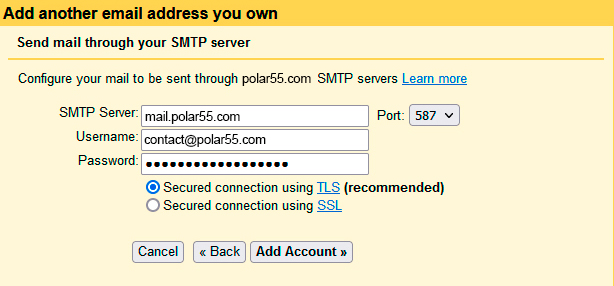
Next, we need to set up the connection. Note that we use port 587, but if this doesn't work for you, you can try other ports provided.
Your username is your email address, and the password is the one you created when setting up your email account. We choose a connection via TLS.
The next step is to confirm ownership of this email account. Google has sent an email with a code for confirmation. Log in to the webmail for the email you're setting up in Gmail, in our case, 'contact@polar55.com,' to get the code.
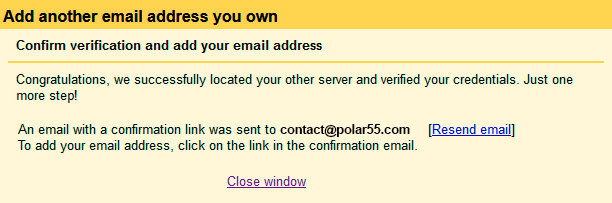
Once done, we can send emails from 'contact@polar55.com' via Gmail.
However, we still need to set up the email to receive emails. Choose 'Add a mail account' under Settings -> Accounts and Import -> 'Check mail from other accounts.'
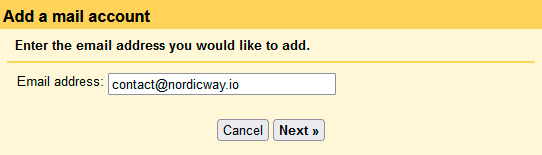
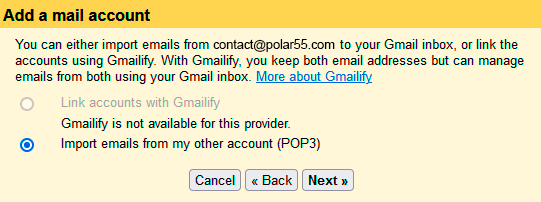
We choose POP3.
In the last step, fill in your username, which is your email address, and the password you chose for it.
You also need to specify a mail server/POP server, which is always mail.yourdomain.com. In our case, it's mail.polar55.com.
The port you use depends on the server you are on with us. It could be either 110 or 995.
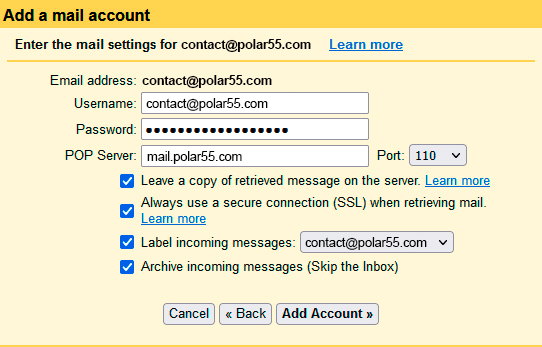
Additionally, you have several optional settings that you can choose to enable or disable. To ensure the integration works, it's a good idea to enable 'Always use a secure connection (SSL) when retrieving emails.'
Still experiencing issues?
In the video below, we go through the typical errors that might be causing your email not to work as expected...